Why Custom Templates Matter
Every accounting system has its own import requirements. Column names, date formats, amount signs—the details matter. A misformatted CSV means failed imports and wasted time.
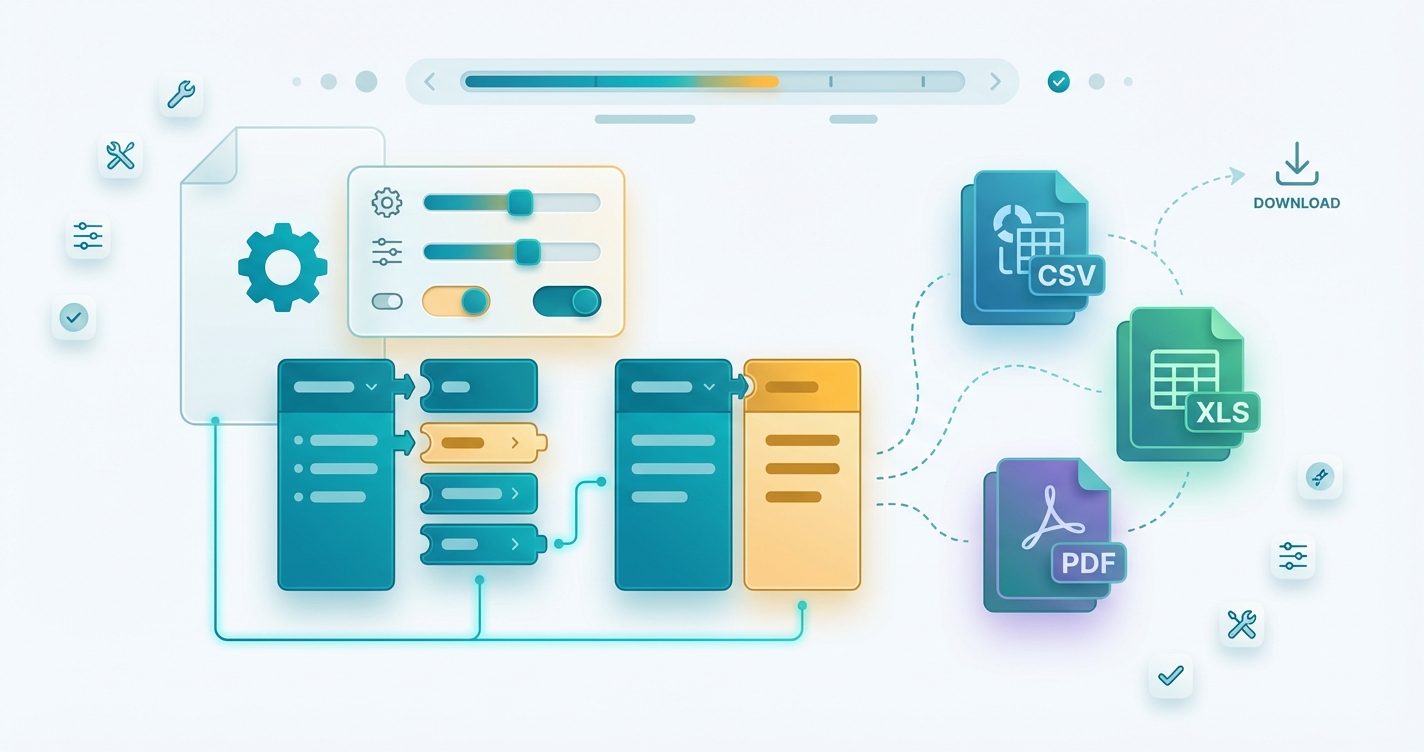
SmartInvoice's custom export templates let you define exactly how your data should be formatted, ensuring clean imports every time.
Step 1: Access Template Settings
- Navigate to Settings → Export Templates
- Click Create New Template
- Give your template a descriptive name (e.g., "QuickBooks Import Format")
Step 2: Define Your Columns
Select which fields to include and customize their output:
Available Fields
| Field | Description |
|---|---|
| `date` | Transaction date |
| `description` | Transaction description |
| `amount` | Transaction amount |
| `balance` | Running balance |
| `reference` | Check number or reference |
| `type` | Debit/Credit indicator |
| `category` | AI-assigned category |
| `account_number` | Source account |
Column Configuration
For each column, you can specify:
- Header name: What appears in the first row
- Position: Column order in the output
- Format: Data formatting rules
Step 3: Configure Date Formats
Different systems expect different date formats:
| Format | Example |
|---|---|
| `YYYY-MM-DD` | 2024-12-15 |
| `MM/DD/YYYY` | 12/15/2024 |
| `DD/MM/YYYY` | 15/12/2024 |
| `DD-MMM-YYYY` | 15-Dec-2024 |
Select your preferred format from the dropdown, or specify a custom pattern.
Step 4: Amount Formatting
Control how amounts are displayed:
Sign Convention - **Negative for debits**: Withdrawals shown as -100.00 - **Positive for all**: Use separate Debit/Credit columns - **Parentheses**: Debits shown as (100.00)
Decimal Handling - **Two decimal places**: 100.00 - **No decimals**: 100 - **Locale-specific**: Uses your region's conventions
Currency Symbol - **Include**: $100.00 - **Exclude**: 100.00
Step 5: Set Delimiters & Encoding
File Format - **CSV**: Comma-separated values - **TSV**: Tab-separated values - **Excel**: Native .xlsx format
Text Encoding - **UTF-8**: Universal compatibility - **UTF-8 with BOM**: Required by some Excel versions - **Windows-1252**: Legacy Windows systems
Text Qualifier - **Double quotes**: "Text with, commas" - **Single quotes**: 'Text with, commas' - **None**: Raw text (only if no special characters)
Step 6: Add Filtering Rules (Optional)
Include only the transactions you need:
Filter Examples
Date Range:
``
Only include transactions from the last 30 days
``
Amount Threshold:
``
Exclude transactions under $10
``
Category Filter:
``
Only include "Office Supplies" and "Travel" categories
``
Step 7: Preview & Test
Before saving, always preview your template:
- Click Preview with Sample Data
- Review the output format
- Download a sample file
- Test import into your target system
If the import fails, adjust your template and test again.
Step 8: Save & Apply
Once you're happy with the preview:
- Click Save Template
- Your template appears in the export dropdown
- Select it when exporting processed documents
Template Library: Quick Starts
We provide pre-built templates for popular systems:
| System | Template |
|---|---|
| QuickBooks Online | QBO Bank Import |
| QuickBooks Desktop | IIF Format |
| Xero | Xero CSV |
| Sage | Sage 50 Import |
| Wave | Wave Transactions |
| FreshBooks | FreshBooks CSV |
Import these as starting points and customize as needed.
Pro Tips
Tip 1: Version Your Templates When updating a template, create a new version instead of modifying the original. This preserves your ability to re-export historical data in the original format.
Tip 2: Client-Specific Templates Create separate templates for each client if they use different accounting systems. Name them clearly: "Client ABC - Xero Format"
Tip 3: Test with Real Data Sample data might work perfectly while real data fails. Always test with actual client documents before committing to a template.
Tip 4: Document Your Templates Add notes explaining why you made specific choices. Future you (or your colleagues) will appreciate it.
Common Issues & Solutions
Issue: Excel shows dates incorrectly Solution: Use the "Excel" format instead of CSV, or ensure date format matches your Excel regional settings.
Issue: Special characters display wrong Solution: Switch to UTF-8 with BOM encoding.
Issue: Numbers imported as text Solution: Remove currency symbols and ensure consistent decimal formatting.
Need Help?
Our support team is here to help you create the perfect export template. Contact us at support@smartinvoice.finance with:
- Your target system name and version
- A sample of the expected import format
- Any specific requirements or challenges
We'll help you build a template that works flawlessly.
Share this article