Not All Bank Statements Are Created Equal
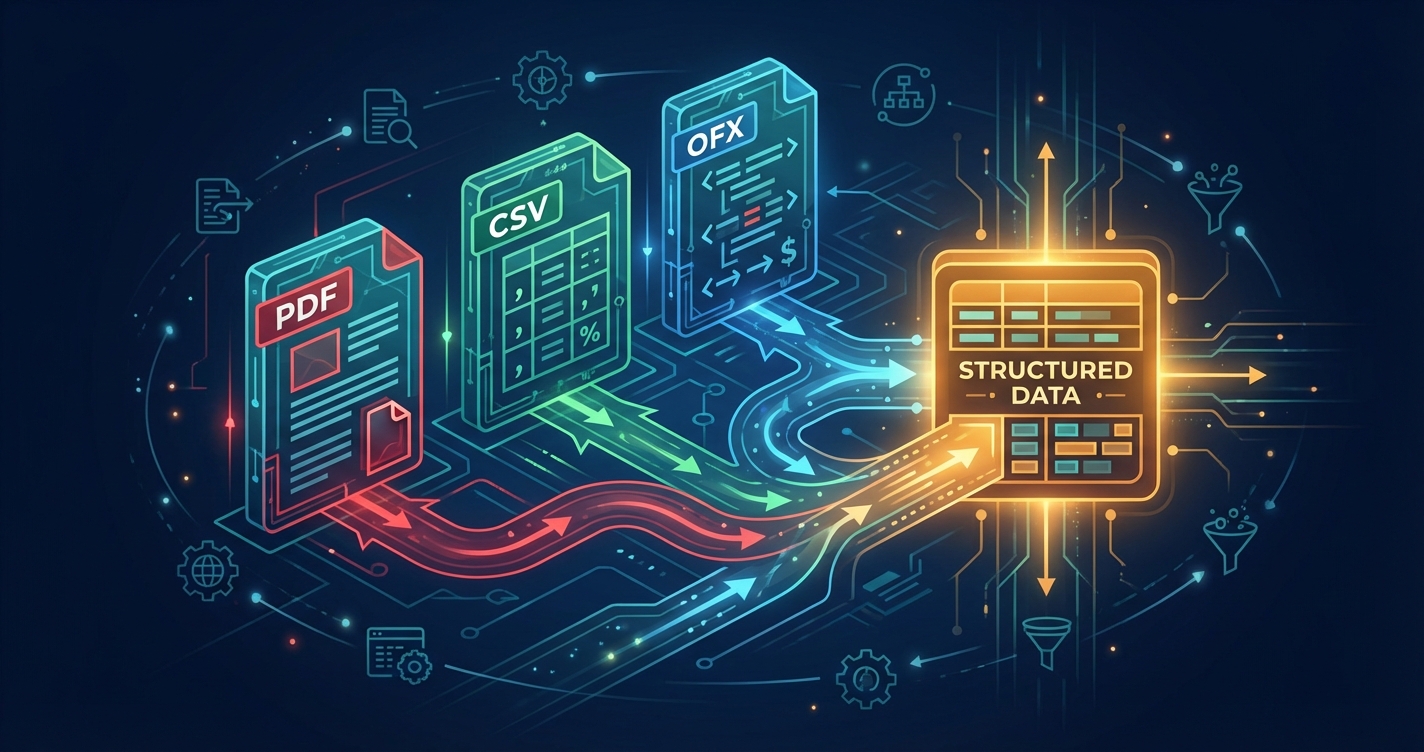
When clients send you bank statements, they arrive in a bewildering variety of formats. PDFs that look completely different from bank to bank. CSV exports with inconsistent column names. OFX files that may or may not open in your software.
Understanding these formats helps you process them more efficiently—and helps you guide clients toward the formats that work best.
PDF Statements: The Universal Format
What It Is: PDF (Portable Document Format) statements are digital copies of what would be printed. They preserve the visual layout of the original document.
Pros: - Universal format—everyone can open them - Consistent appearance across devices - Official-looking; suitable for records - Often digitally signed for authenticity
Cons: - Data is embedded in visual layout, not structured - Harder to extract data programmatically - Quality varies (native digital vs. scanned)
Types of PDF Statements
Native Digital PDFs: Generated directly by banking software. Text is actual text, not images. These are the easiest to process—our AI can read them with 99.9% accuracy.
Scanned PDFs: Paper statements converted to digital. Text is actually an image. Requires OCR (Optical Character Recognition) before data extraction. Quality depends heavily on scan quality.
Hybrid PDFs: Some elements are native text, others are images. Common when banks add watermarks or stamps to digital statements.
How SmartInvoice Handles PDFs
- Format Detection: We automatically identify native vs. scanned content
- Image Enhancement: For scanned documents, we apply deskewing, contrast adjustment, and noise reduction
- Layout Analysis: Our AI identifies headers, transaction tables, and summary sections
- Structured Extraction: Transactions are extracted with full context awareness
Processing Time: - Native PDF: 2-4 seconds - Scanned PDF (good quality): 5-8 seconds - Scanned PDF (poor quality): 10-15 seconds + potential manual review
CSV Exports: Structured but Inconsistent
What It Is: CSV (Comma-Separated Values) files are plain text with data organized in rows and columns. Most banks offer CSV export as an alternative to PDF.
Pros: - Already structured—no extraction needed - Small file sizes - Universal compatibility - Easy to manipulate in Excel
Cons: - No standardization across banks - Column names vary wildly - Date and amount formats inconsistent - May lose important context (running balances, etc.)
CSV Chaos: Real Examples
Bank A:
``csv
Date,Description,Amount
12/15/2024,AMAZON PURCHASE,-49.99
``
Bank B:
``csv
Transaction Date,Narrative,Debit,Credit
2024-12-15,AMAZON PURCHASE,49.99,
``
Bank C:
``csv
FECHA,CONCEPTO,IMPORTE,SALDO
15-12-2024,AMAZON PURCHASE,"-49,99","1.250,01"
``
Same transaction, three completely different formats. Column names, date formats, decimal separators, debit/credit handling—everything varies.
How SmartInvoice Handles CSVs
- Header Detection: We identify column purposes regardless of naming
- Format Inference: Date formats, decimal conventions, and encoding are automatically detected
- Schema Mapping: Columns are mapped to our standard schema
- Validation: Totals are verified against individual transactions
Fun Fact: We've catalogued over 400 unique CSV formats from different banks worldwide. Our AI recognizes most of them instantly.
OFX/QFX: The Professional Standard
What It Is: OFX (Open Financial Exchange) is an XML-based format designed specifically for financial data interchange. QFX is Intuit's proprietary variant used by Quicken.
Pros: - Standardized structure - Rich metadata (account info, statement periods, etc.) - Direct import into most accounting software - Transaction IDs for deduplication
Cons: - Not all banks offer it - Older format (specification from 1997) - Some banks implement it incorrectly - Requires software that understands OFX
OFX Structure
<STMTTRN>
  <TRNTYPE>DEBIT</TRNTYPE>
  <DTPOSTED>20241215</DTPOSTED>
  <TRNAMT>-49.99</TRNAMT>
  <FITID>2024121500001</FITID>
  <NAME>AMAZON PURCHASE</NAME>
</STMTTRN>
When banks follow the spec correctly, OFX is beautiful: consistent, structured, and unambiguous.
How SmartInvoice Handles OFX
- Parsing: Standard XML processing extracts all transaction data
- Validation: We check for common OFX implementation errors
- Enrichment: Transaction codes are mapped to human-readable categories
- Export: Data can be re-exported in any format you need
Processing Time: Under 1 second (it's already structured!)
MT940/MT942: International Banking Standard
What It Is: SWIFT MT940 is the international standard for electronic bank statements, used primarily in Europe and for international accounts.
Pros: - Global standard for corporate banking - Highly structured - Supports multiple currencies - Includes balance confirmations
Cons: - Complex syntax - Primarily for corporate accounts - Not typically available to individuals - Requires specialized parsing
MT940 Example
:61:2412150049,99D
:86:AMAZON PURCHASE REF:ORDER123456
This cryptic format packs a lot of information, but it's designed for machines, not humans.
SmartInvoice MT940 Support
We fully support MT940 and MT942 formats, including: - Multi-currency statements - Structured remittance information - Balance verification - Corporate account hierarchies
Choosing the Right Format
For Speed: OFX/CSV If available, these formats process nearly instantly. Request them from your clients when possible.
For Completeness: PDF PDFs often contain additional context (opening/closing balances, bank notices, etc.) that structured formats omit.
For Automation: OFX Direct import into accounting software with minimal manual intervention.
Our Recommendation
Ask clients to provide both: 1. PDF for official records and complete information 2. CSV or OFX for rapid processing
SmartInvoice can process either, but having both gives you redundancy and verification.
Format Detection in SmartInvoice
You don't need to tell us what format you're uploading. SmartInvoice automatically:
- Identifies file type by content, not just extension
- Selects appropriate processor for that format
- Applies format-specific optimizations
- Outputs consistent structured data regardless of input format
Upload a PDF, CSV, OFX, or MT940—you get the same clean, standardized output.
Troubleshooting Format Issues
PDF: "Unable to extract transactions" - Check if it's a scanned document with very low quality - Try re-exporting from your bank's online portal - Contact support with a sample (we may need to add bank-specific handling)
CSV: "Column mapping failed" - Ensure the file isn't corrupted (can you open it in Excel?) - Check for encoding issues (special characters displaying wrong) - Let us know the bank—we'll add it to our recognition database
OFX: "Invalid file format" - Some banks use non-standard OFX implementations - Try the CSV export as an alternative - Report the issue—we'll investigate compatibility
Conclusion
Every format has its place, and SmartInvoice handles them all. Whether your clients send pristine digital PDFs or decade-old scanned statements, we'll extract the data you need.
The format wars are over. You win.
Having trouble with a specific bank format? Email us at support@smartinvoice.finance with a sample statement (redact sensitive info) and we'll help.
Share this article